> ## Documentation Index
> Fetch the complete documentation index at: https://docs.contextforce.com/llms.txt
> Use this file to discover all available pages before exploring further.
# Introduction
> Bringing AI Closer to Users, One Click at a Time
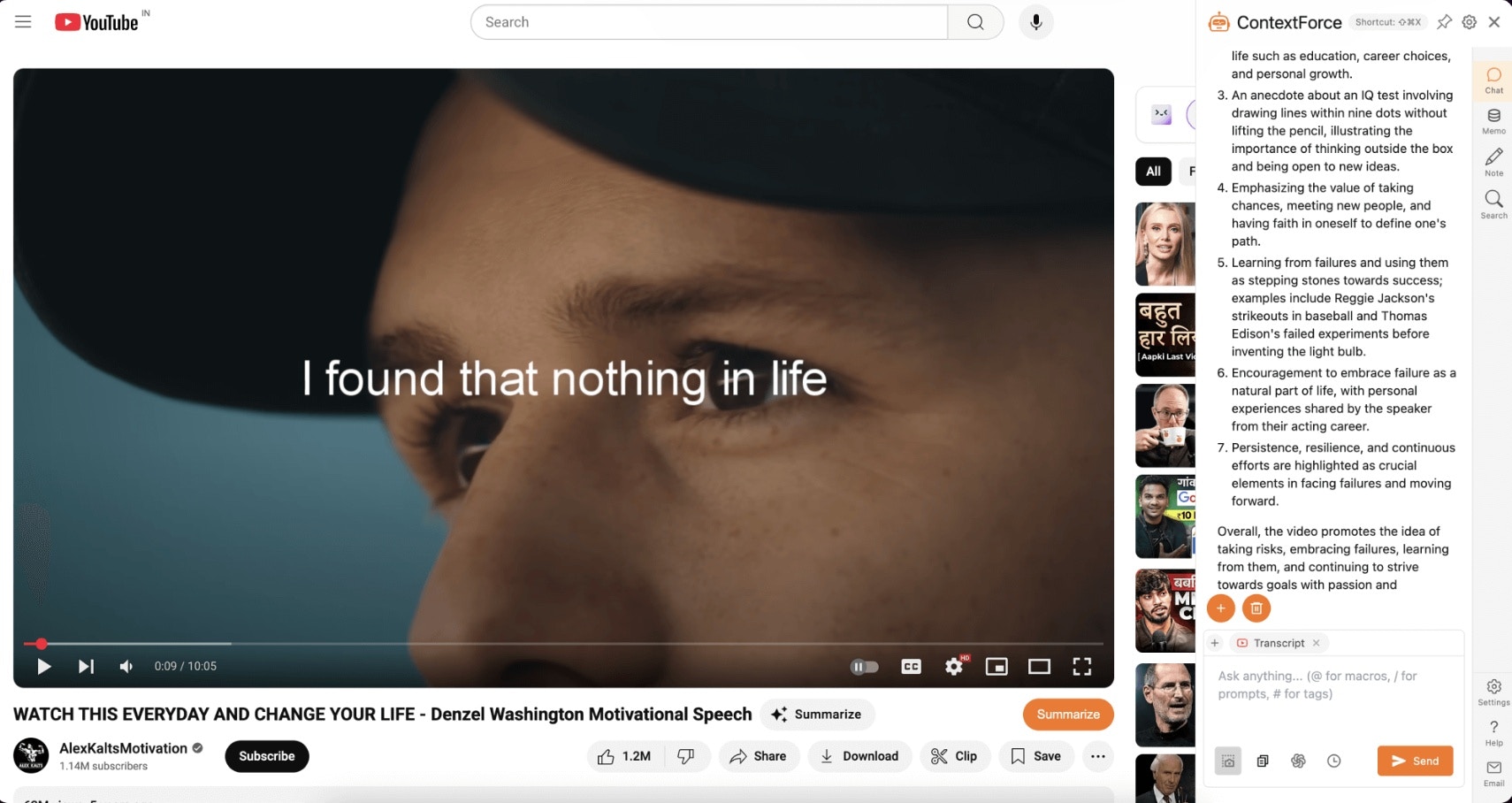 At Contextforce, we believe AI should be seamless, intuitive, and accessible—not something you have to struggle to integrate into your workflow. That’s why we built a powerful Chrome extension that brings AI to your fingertips, whether you’re browsing the web, managing knowledge, or optimizing your AI prompts.
Our mission is simple: Bridge the gap between AI and everyday users by integrating AI where it matters most—inside the tools you already use. No switching tabs, no manual copy-pasting—just smart, context-aware AI that enhances your productivity effortlessly.
## 🚀 Redefining how you interact with AI:
* ✔️ **Web AI Assistant** – AI-powered buttons embedded directly into websites like YouTube, X.com, Gmail, Google, and Stack Overflow.
* ✔️ **Personal Knowledge Base** – A private, on-device knowledge repository where you can store, tag, and query your saved content.
* ✔️ **Smart Prompt Management** – Organize, retrieve, and automate AI prompts for maximum efficiency in your workflows.
* ✔️ **Pluggable AI Agents & Tools** – Customize LEXI with specialized AI apps for tasks like image enhancement, research, writing, and coding assistance—just like an AI-powered browser extension.
The future of AI isn’t just about better models—it’s about smarter integration. We’re here to make AI work for you, where you need it, when you need it.
Join us and experience a new way to interact with AI.
## Personalized AI Assistant
At Contextforce, we believe AI should be seamless, intuitive, and accessible—not something you have to struggle to integrate into your workflow. That’s why we built a powerful Chrome extension that brings AI to your fingertips, whether you’re browsing the web, managing knowledge, or optimizing your AI prompts.
Our mission is simple: Bridge the gap between AI and everyday users by integrating AI where it matters most—inside the tools you already use. No switching tabs, no manual copy-pasting—just smart, context-aware AI that enhances your productivity effortlessly.
## 🚀 Redefining how you interact with AI:
* ✔️ **Web AI Assistant** – AI-powered buttons embedded directly into websites like YouTube, X.com, Gmail, Google, and Stack Overflow.
* ✔️ **Personal Knowledge Base** – A private, on-device knowledge repository where you can store, tag, and query your saved content.
* ✔️ **Smart Prompt Management** – Organize, retrieve, and automate AI prompts for maximum efficiency in your workflows.
* ✔️ **Pluggable AI Agents & Tools** – Customize LEXI with specialized AI apps for tasks like image enhancement, research, writing, and coding assistance—just like an AI-powered browser extension.
The future of AI isn’t just about better models—it’s about smarter integration. We’re here to make AI work for you, where you need it, when you need it.
Join us and experience a new way to interact with AI.
## Personalized AI Assistant
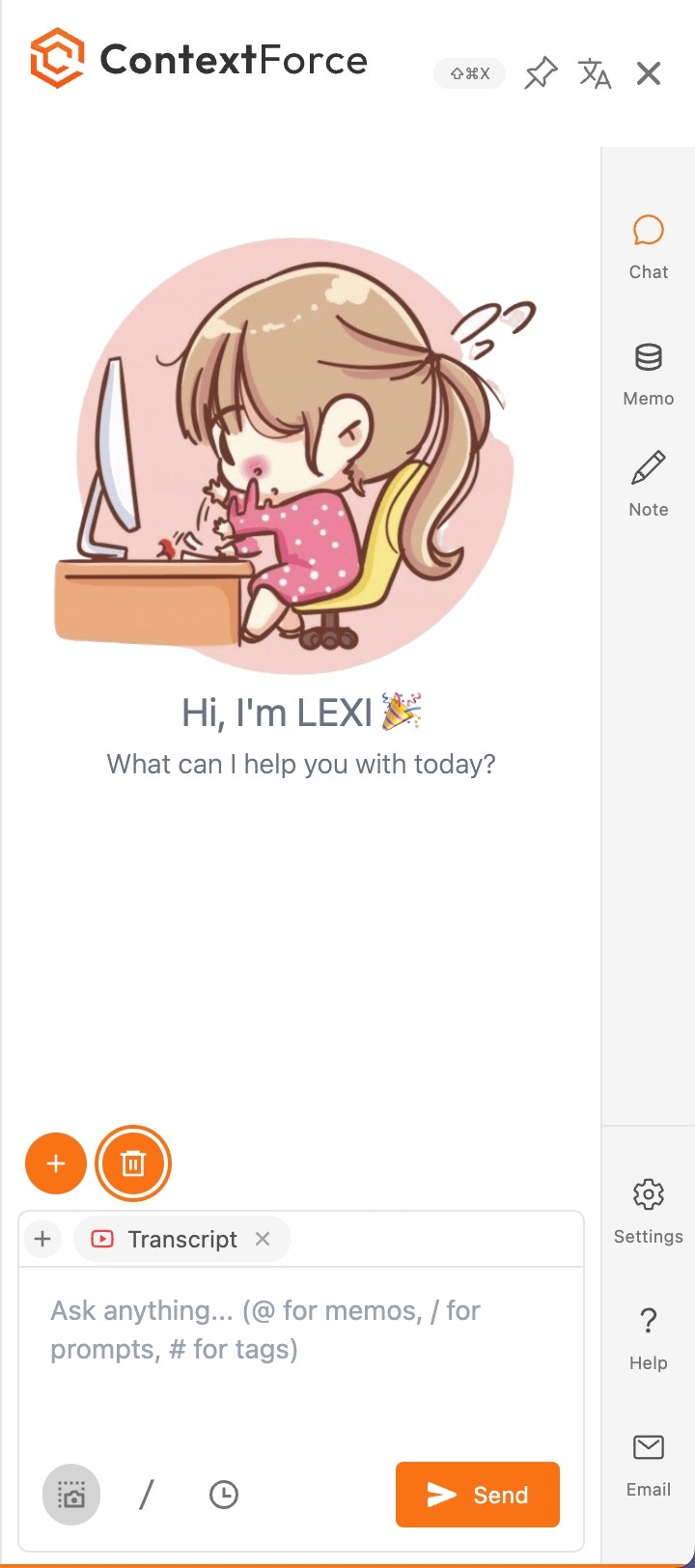
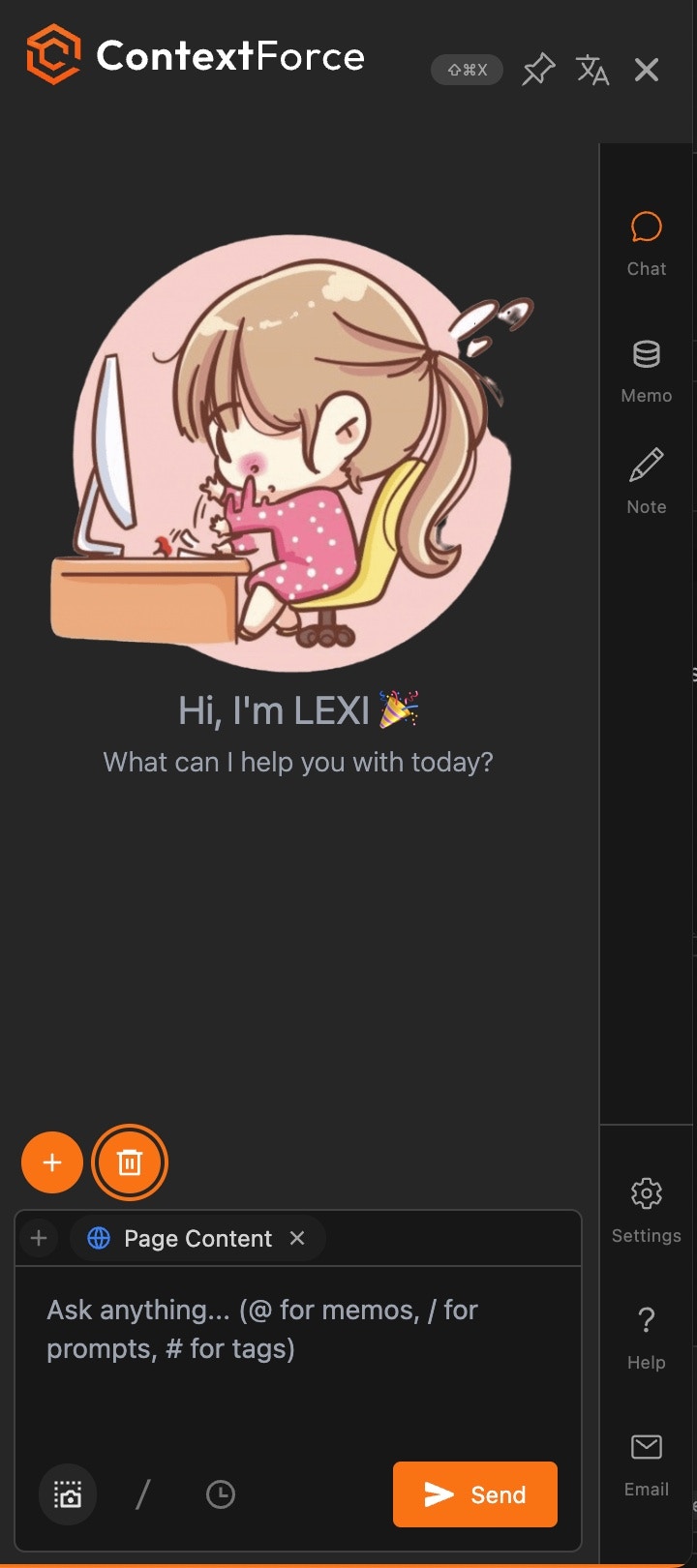 Pick your own avatar (gif is supported). And choose light vs dark mode.
You can customize the display and target language of your AI Assistant.
You can craft your own prompts and use them in your workflows. Our library has over 300+ prompts to choose from.
You can pick your own AI agents and tools to enhance your workflows.
## Examples
Zelda avatar in animated gif, dark mode, traditional Chinese in display and full screen.
## Integrate AI into your workflow
To integrate AI into your workflow, we've created the following:
* Quick menu for selected text
* Image menu when you mouse over an image
* Youtube summarize button
* Context capture from youtube, google search result and webpage so you can ask questions about the content.
* Screenshot capture certain area of the page and ask questions about the screenshot.
* Shortcut to open LEXI sidebar
* Chat Editor shortcuts: `/` to open prompt menu, `@` to show memos, and `#` to show tags.
> We will continue to add more integration points to make AI more seamless and integrated into your daily workflow!
Summarize youtube videos to help you understand the content.
Chat and extract text from images and use it for your AI workflows.
You can use the quick menu to carry different actions with the selected text.
You can chat with the context of the webpage, youtube video, google search result and image.
You can highlight and take notes on the webpage
You can capture, organize, and retrieve knowledge from your browsing history.
Pick your own avatar (gif is supported). And choose light vs dark mode.
You can customize the display and target language of your AI Assistant.
You can craft your own prompts and use them in your workflows. Our library has over 300+ prompts to choose from.
You can pick your own AI agents and tools to enhance your workflows.
## Examples
Zelda avatar in animated gif, dark mode, traditional Chinese in display and full screen.
## Integrate AI into your workflow
To integrate AI into your workflow, we've created the following:
* Quick menu for selected text
* Image menu when you mouse over an image
* Youtube summarize button
* Context capture from youtube, google search result and webpage so you can ask questions about the content.
* Screenshot capture certain area of the page and ask questions about the screenshot.
* Shortcut to open LEXI sidebar
* Chat Editor shortcuts: `/` to open prompt menu, `@` to show memos, and `#` to show tags.
> We will continue to add more integration points to make AI more seamless and integrated into your daily workflow!
Summarize youtube videos to help you understand the content.
Chat and extract text from images and use it for your AI workflows.
You can use the quick menu to carry different actions with the selected text.
You can chat with the context of the webpage, youtube video, google search result and image.
You can highlight and take notes on the webpage
You can capture, organize, and retrieve knowledge from your browsing history.