> ## Documentation Index
> Fetch the complete documentation index at: https://docs.contextforce.com/llms.txt
> Use this file to discover all available pages before exploring further.
# Web Assistant
> How we integrate with the web to make your life easier
AI-powered interaction with YouTube videos and content
#### Feature Toggle
 Enable or disable the YouTube Assistant functionality globally with a simple toggle switch in your settings. This gives you complete control over when and how the assistant interacts with YouTube content.
Interact with highlighted text across web pages
#### Create a Blacklist
Enable or disable the YouTube Assistant functionality globally with a simple toggle switch in your settings. This gives you complete control over when and how the assistant interacts with YouTube content.
Interact with highlighted text across web pages
#### Create a Blacklist
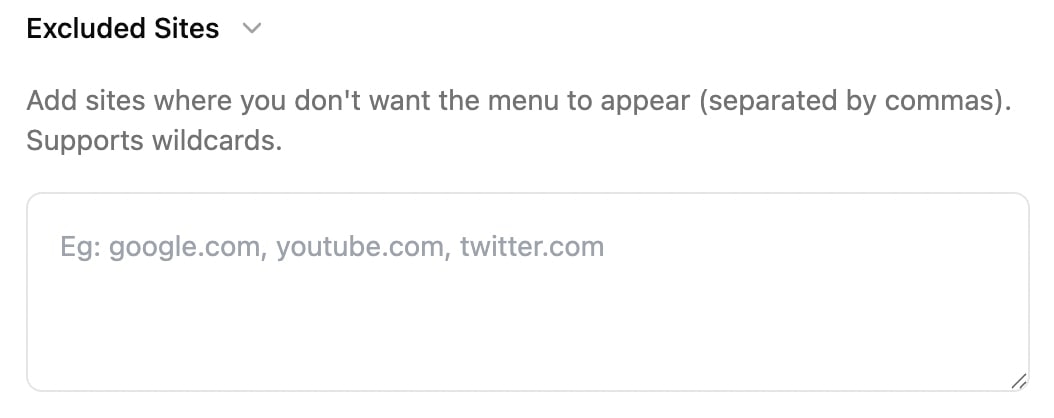 * • Enter domains in a comma-separated list (e.g., example.com, test.org)
* • The text selection feature will be automatically disabled on these sites
#### Feature Toggle
* • Enter domains in a comma-separated list (e.g., example.com, test.org)
* • The text selection feature will be automatically disabled on these sites
#### Feature Toggle
 Enable or disable the Selected Text Assistant functionality globally using the main toggle switch.
AI-powered analysis of images across the web
#### Create a Blacklist
* • Enter domains in a comma-separated list (e.g., example.com, test.org)
* • The text selection feature will be automatically disabled on these sites
#### Feature Toggle
Enable or disable the Selected Text Assistant functionality globally using the main toggle switch.
AI-powered analysis of images across the web
#### Create a Blacklist
* • Enter domains in a comma-separated list (e.g., example.com, test.org)
* • The text selection feature will be automatically disabled on these sites
#### Feature Toggle
 Control the Image Assistant functionality globally with the main feature toggle.
AI assistance for development platforms
#### Platform-Specific Controls
Control the Image Assistant functionality globally with the main feature toggle.
AI assistance for development platforms
#### Platform-Specific Controls
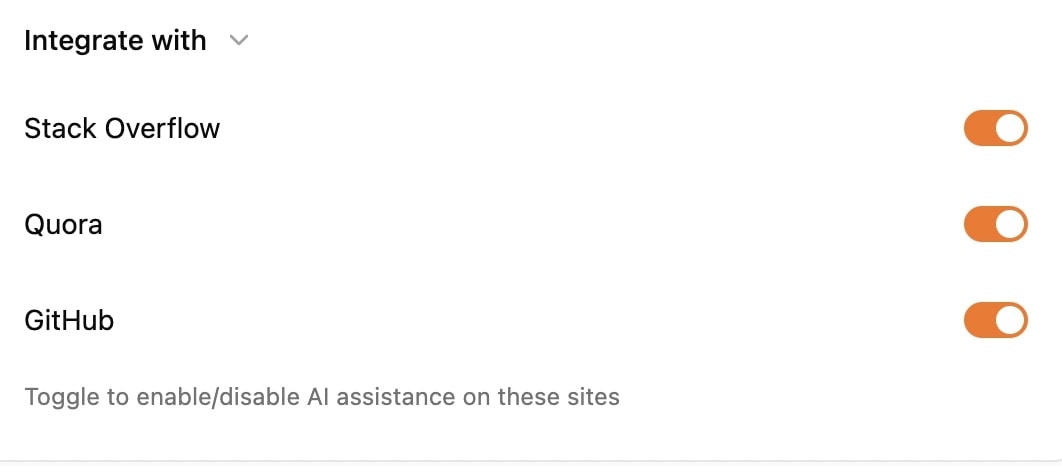 * GitHub: Enable/disable code assistance on GitHub repositories and discussions
* Stack Overflow: Control the assistant's availability on Stack Overflow pages
* Quora: Toggle code assistance for Quora's programming-related content
#### Feature Toggle
* GitHub: Enable/disable code assistance on GitHub repositories and discussions
* Stack Overflow: Control the assistant's availability on Stack Overflow pages
* Quora: Toggle code assistance for Quora's programming-related content
#### Feature Toggle
 Master switch to enable or disable all Code Assistant functionality.
***
## Prompt Management
Master switch to enable or disable all Code Assistant functionality.
***
## Prompt Management
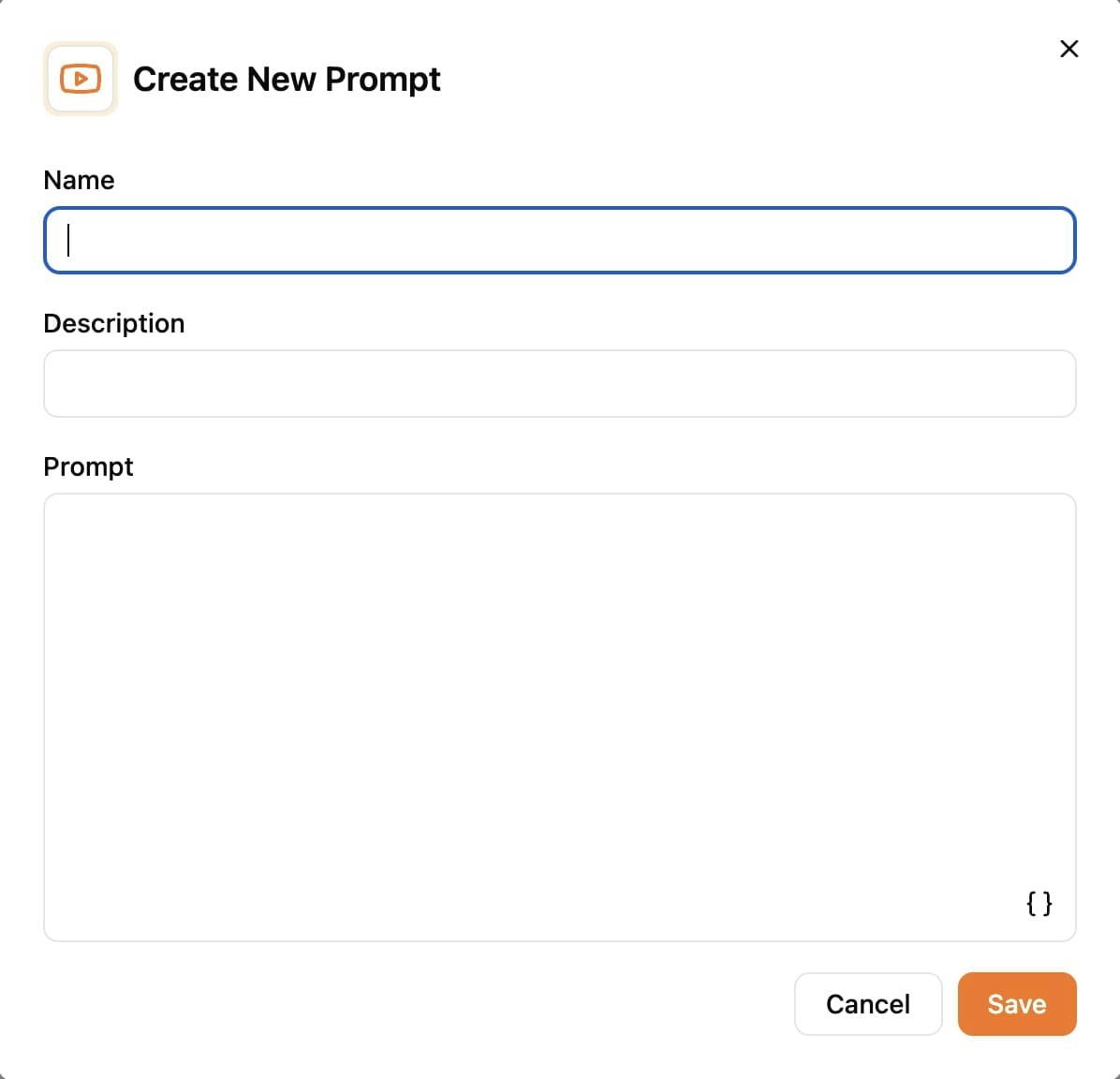 * • Click the "Create New Prompt" button to define custom prompts
* • You can create prompts for YouTube, Selected Text, Image, and Code
* • Click the `{}` button to add macros
* • Change the icon using the top left icon button
* • Click the "Create New Prompt" button to define custom prompts
* • You can create prompts for YouTube, Selected Text, Image, and Code
* • Click the `{}` button to add macros
* • Change the icon using the top left icon button